

Nuke’s classic 3D projection workflow is something every compositor knows well. It has been the foundation for set extensions, texture reprojects and matte painting work for many years. With Nuke 17, Foundry introduced USD support, which brings a completely new approach to projections and scene management.
If you are moving from the old system to the new USD workflow, here are the key differences and what you need to understand before using it in production.
Classic 3D vs USD in Nuke
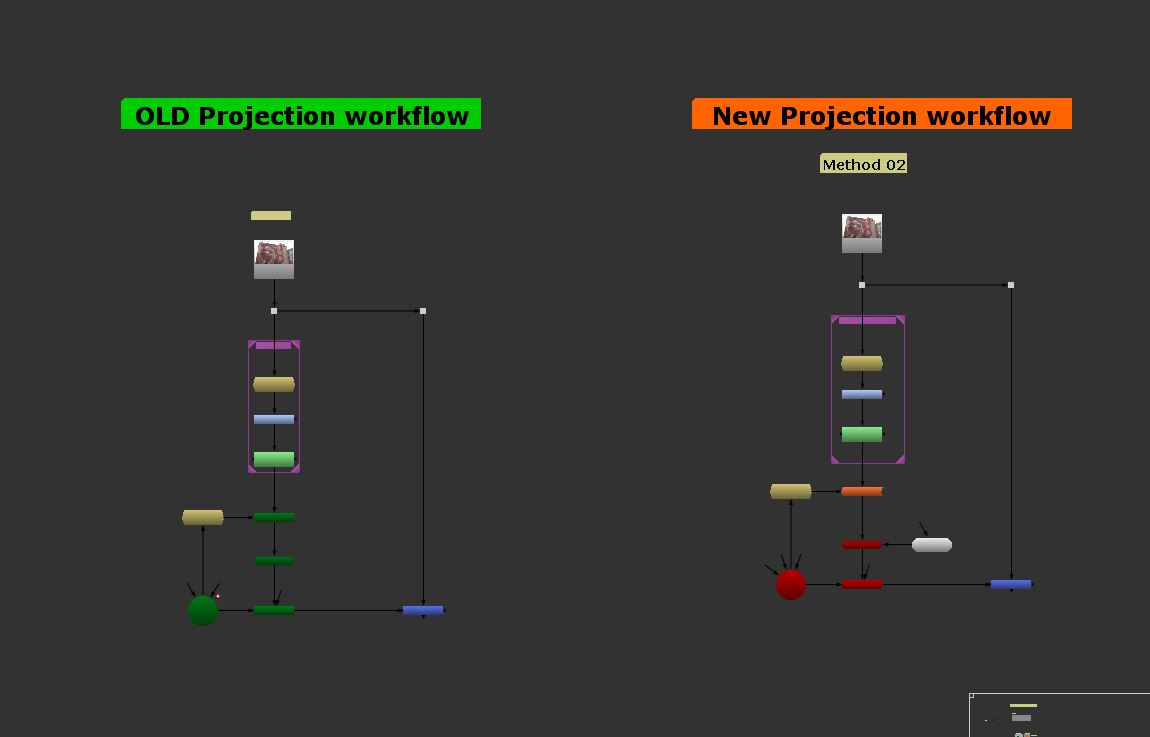
The first thing to know is that the classic 3D system and the new USD system do not connect. They operate as two separate frameworks inside Nuke.
Classic nodes appear in green.
USD nodes appear in red or orange.
This color coding is not just cosmetic. It is a visual reminder that you cannot mix the two systems. A projection created in the classic 3D workflow cannot be applied to USD geometry, and USD nodes cannot be plugged into the old ScanlineRender.
USD is a Stage, Not a Model Import
In the classic workflow, you load geometry using ReadGeo. You import OBJ, FBX or Alembic files, apply a Project3D node, and render with ScanlineRender. It is simple and familiar but becomes slow when dealing with heavy environments.
USD works differently.
A USD file is a structured stage that contains geometry, cameras, materials and animation. Your projection becomes part of this stage and behaves like a material assignment rather than a standalone node trick.
The Projection3D node becomes a Projection Shader in USD. This means you cannot plug it directly into geometry. To apply the projection, you must use a Geo Bind Material. The projection is attached to the prim through the material, not through a direct connection.
Changes in the CameraTracker
The CameraTracker node also receives a small but important update.
• If you enable the output checkbox when creating a camera, Nuke generates a classic camera.
• If you disable the checkbox, it creates a USD style camera.
This allows artists to choose which system they want to work in. It is also helpful for transitioning pipelines where both workflows may still exist in the same project.
Classic Projection Workflow
The old projection process remains fast and straightforward.
You add your texture, project it from the camera, and apply it to geometry. For many matte painting tasks, this workflow is still perfect.
Everything is directly connected and easy to troubleshoot.
But once the scene becomes complex with multiple projections, holdouts, or heavy geometry, the node graph becomes difficult to manage.
New USD Projection Workflow
If you export a geo card from the CameraTracker, it behaves almost the same as the classic system. Much of the workflow feels familiar on the surface.
The difference appears when you work with USD geometry.
You cannot plug the projection directly into a USD mesh.
You must use the Geo Bind Material to attach the projection to the USD prim.
Once you do that, the result looks exactly the same, but the setup is far more structured and consistent.
This approach matches how modern pipelines work. Materials, textures and projections live inside the same USD stage. Everything stays organized and predictable even when the shot becomes large.
Performance and Scene Management
Classic ReadGeo imports have trouble handling heavy scenes. Large OBJ or Alembic files slow down navigation, loading and rendering.
USD solves this with better hierarchy handling, instancing and optimized scene referencing. You can bring in huge environments from Maya, Houdini or Blender without conversion and without sacrificing performance.
Camera updates are also easier.
In the classic workflow, updating a camera usually means re-importing or replacing nodes.
With USD, if layout or camera teams update the stage, your scene in Nuke can refresh while keeping your projection intact.
Which Workflow Should You Use
Nuke is not replacing the classic projection system.
Both workflows remain in the software for a reason.
Use classic projection when you need:
• quick projections
• simple geometry
• fast matte painting work
• minimal setup
Use USD projection when you need:
• large environments
• heavy geometry
• upstream updates
• pipeline approved asset structure
Understanding both systems helps you choose the best approach for each shot.